
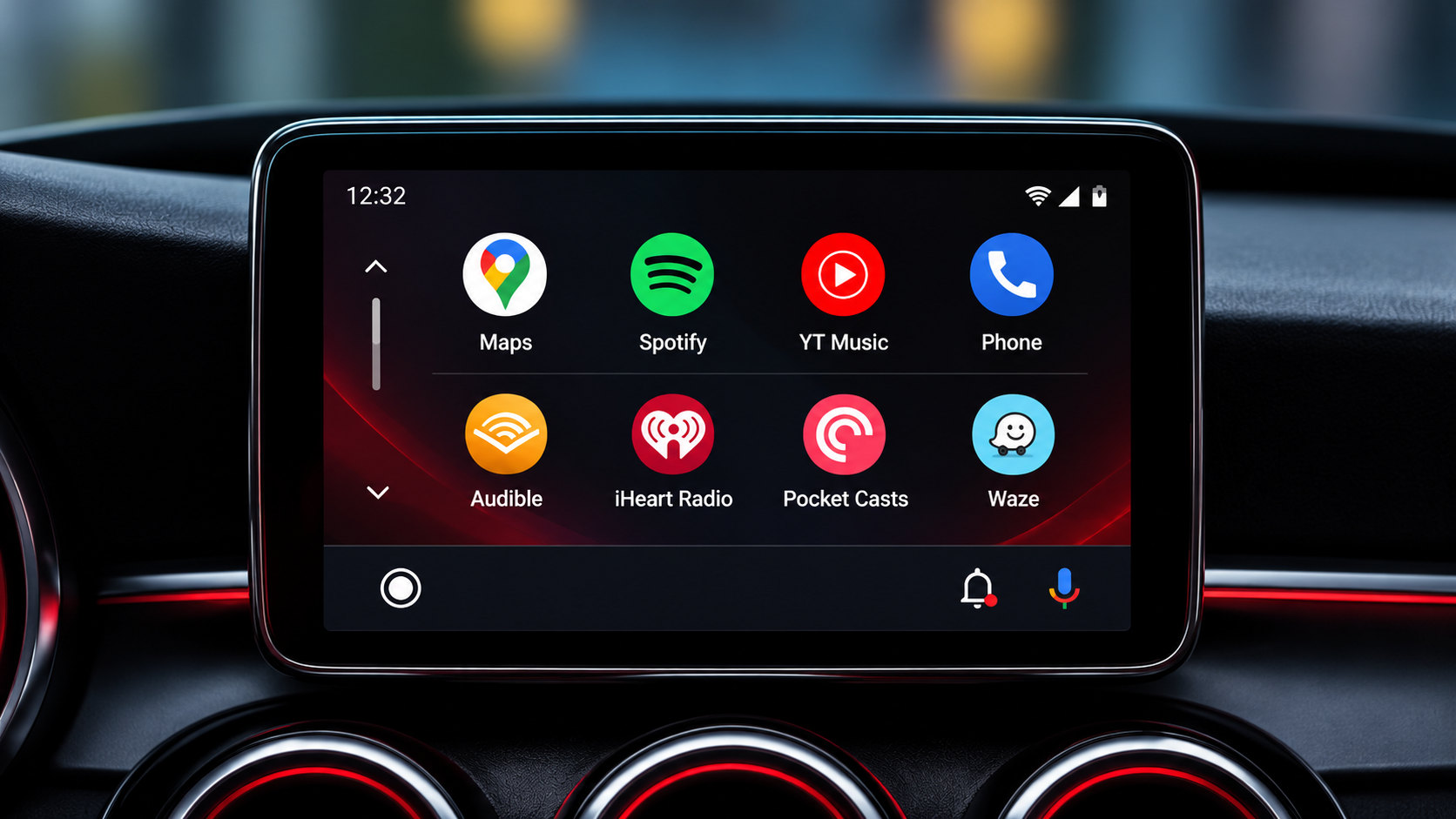
YouTube Music on Android Auto
Table of Contents
Last month I was merging onto the highway in my 2021 Honda Civic when a three minute advertisement started playing right before my morning podcast. The commercial technically had a skip timer after ten seconds, except Google does not put a Skip Ad button on the car dashboard. To skip it, I would have had to grab my Galaxy S24 from the cup holder, unlock the screen, open the player, and tap a tiny button while doing seventy miles an hour.
That single drive pushed me to figure out how to run YouTube Music on Android Auto cleanly without paying another monthly subscription or risking a ticket just to get past a commercial.
If you spend five minutes reading car forums right now, you will see drivers hitting the exact same wall. Xiaomi recently stripped out built in screen off playback through system updates, mobile browsers drop audio the second a phone heats up in the center console, and most workarounds people share online break steering wheel controls or stop working after a week.
After spending a couple of weekends testing wired cords and a wireless adapter in my Civic with my Galaxy S24 running Android 16, I finally got ad free playback, offline playlists, and steering wheel track skipping running reliably. It did not work smoothly out of the box, though, and I had to fix a handful of stubborn bugs along the way.
Why Playing YouTube on Android Auto Fails Drivers on the Road
Many drivers search for ways to play YouTube on Android Auto, expecting the regular video app to show up on their infotainment screen. For obvious safety reasons, Google blocks the standard YouTube video app from car displays while driving, aside from basic audio controls on certain paid plans. Instead, Google treats YouTube Music as one of the best Android Auto apps for music, long DJ sets, and podcasts.
If you pay for a monthly plan, the official player works well enough on the road. For everyone trying to use YouTube Music free during a daily commute, long pre roll commercials ruin the drive.
Sitting through a quick promo on a laptop at home is harmless. In morning traffic, an unskippable three minute audio ad hijacks your speakers because car interfaces lock out phone screen interactions while moving. Before changing my setup, I tested two shortcuts people often recommend on Reddit. Playing audio through Chrome broke my Honda steering wheel skip buttons and paused whenever my screen timed out. Routing traffic through a foreign VPN slowed down Google Maps loading in heavy traffic. Neither felt worth the hassle for a forty minute commute.
Getting YouTube Music Free Without Monthly Fees or Browser Tricks
The cleanest fix I found was replacing the restricted Play Store release with an unlocked YouTube Music APK build that removes audio commercials and unlocks background playback natively.
One mistake during my very first install cost me half an hour of frustration in my driveway. I left the official Google Play app installed on my Galaxy S24 right beside the unlocked build. Every time I plugged into the Civic USB port, Android Auto kept launching the ad heavy stock app instead of the unlocked one.
Before heading out to your vehicle, uninstall or disable the stock Play Store version first. Open the unlocked build on your phone, sign into your account, and play two songs with your screen locked to confirm the audio keeps running cleanly with zero interruptions.
Why Android Auto Is Inside Settings and How to Show the App Icon
A lot of new drivers get stuck right at the beginning because they search their phone app drawer for Android Auto and assume something broke. On Android 10 right up through Android 16, Google no longer uses a standalone launcher icon. Android Auto is built directly into your phone system settings instead.
Even after installing an unlocked music player, there is a solid chance you will plug into your car and see nothing inside the dashboard media tab. Android Auto hides third party installs by default until you flip one built in developer toggle.
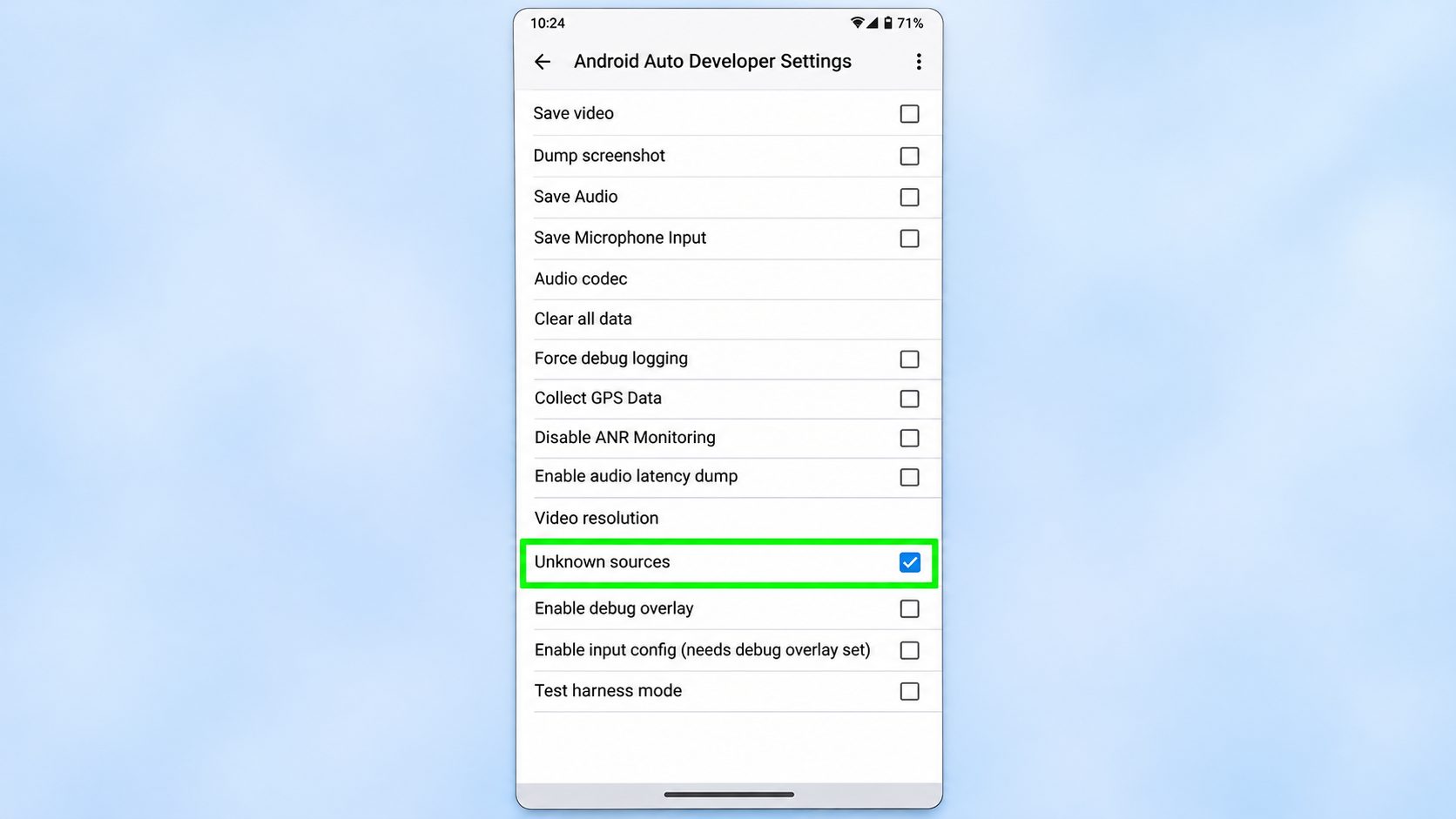
Unplug your phone from the car, open phone Settings, tap Connected devices, and select Android Auto. Scroll to the very bottom and tap the Version number ten times until a popup asks to allow development settings. Tap OK, hit the three dots in the top right corner, open Developer settings, and check the box for Unknown sources.
Before backing out of that menu, tap Customize launcher, make sure YouTube Music is checked, and drag it up near Google Maps so you do not have to hunt for it while parked. Restart your phone once, plug back into your car, and the icon appears right on the dashboard.
Fixing Android Auto Not Working, Blank Screens, and Infinite Loading
Getting the icon onto your car screen is only half the job. Three days after my setup started working, I hopped into my Civic, tapped the music icon, and got stuck staring at an endless spinning loading circle. Audio played softly out of my phone speaker, while the car screen stayed completely blank and my steering wheel buttons stopped responding.
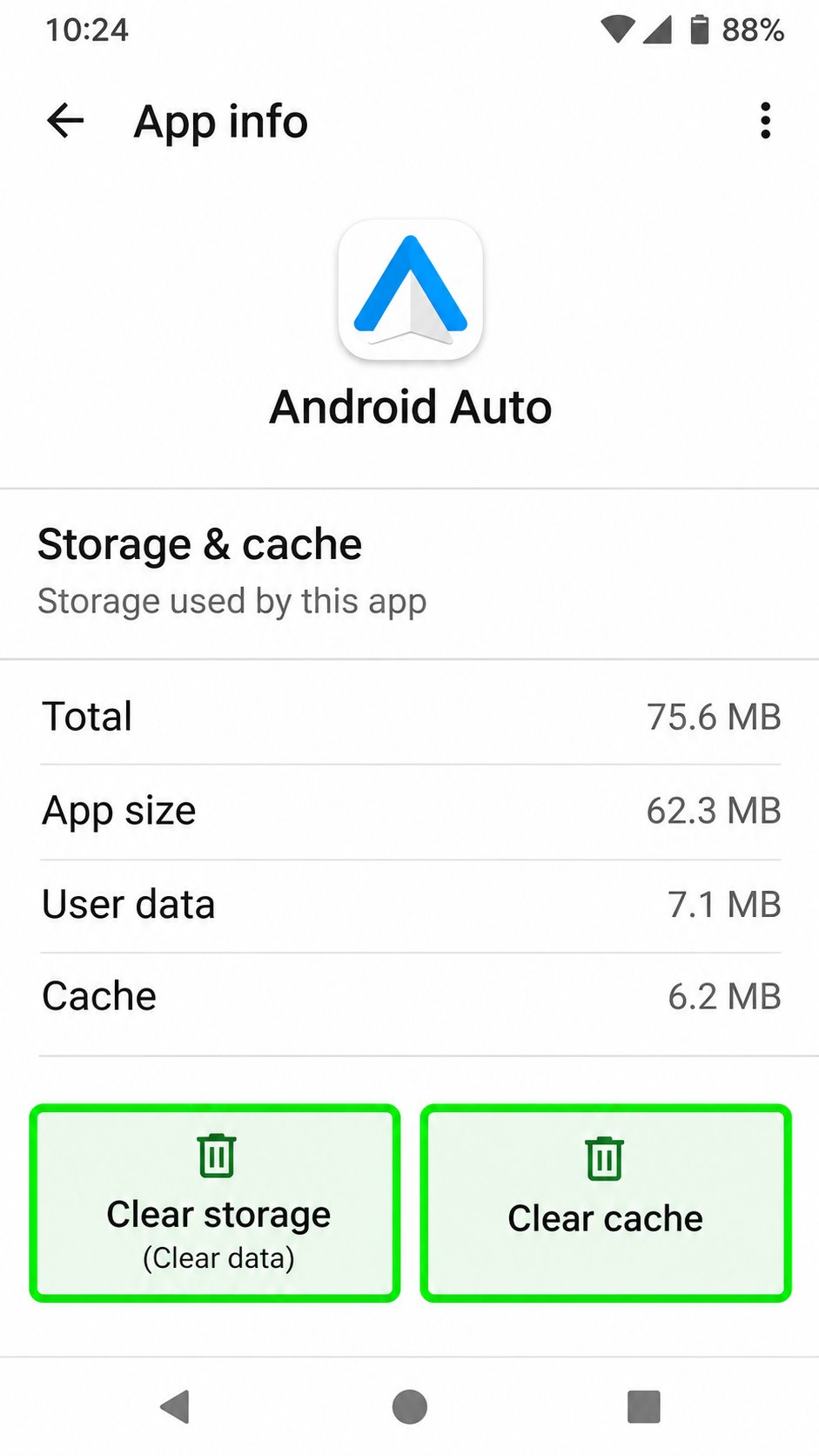
Whenever you run into Android Auto not working properly or showing a blank screen, corrupted connection cache between the phone and the head unit is usually to blame. Running this quick clear cache on Android routine brought my dashboard interface and steering wheel controls right back:
- Open phone Settings, go to Apps, tap Android Auto, open Storage, and clear both cache and app data.
- Go back into Android Auto Developer settings, uncheck Unknown sources, wait five seconds, and check it right back on.
- Reboot your car head unit by holding down the physical stereo power knob for ten seconds, then reconnect your phone.
It also helps to understand what loads reliably on a car display. Scrolling through endless home screen recommendations or search feeds on the dashboard can occasionally stall or display an empty library tab. Saving your favorite mixes into personal playlists on your phone ahead of time avoids that completely. Your saved playlists and currently playing screen load reliably, and steering wheel skip buttons work without ever touching your phone.
How to Run YouTube Music Offline in Your Car Without Data Drops
Driving through rural stretches or parking garages with weak signal quickly proves why streaming alone is not enough. Having YouTube Music offline free playback ready inside the car solves buffering dead zones completely.
Whenever I have a weekend highway trip coming up, I download two or three playlists over home WiFi beforehand so they stay ready on the Civic display with zero mobile data usage. If you also keep MP3 or FLAC files stored inside a Music folder on your phone, open YouTube Music Settings on your phone, tap Library and downloads, and turn on Show device files. Next time you connect to your car, those local tracks appear cleanly inside your media menu right alongside your saved playlists.
Stopping Battery Sleep, Unwanted Autoplay, and Voice Control Glitches
Samsung phones on One UI and newer Pixel or Xiaomi builds use aggressive background battery restrictions. That is the main reason drivers notice their music app works fine for two days and vanishes from the car launcher on day three.
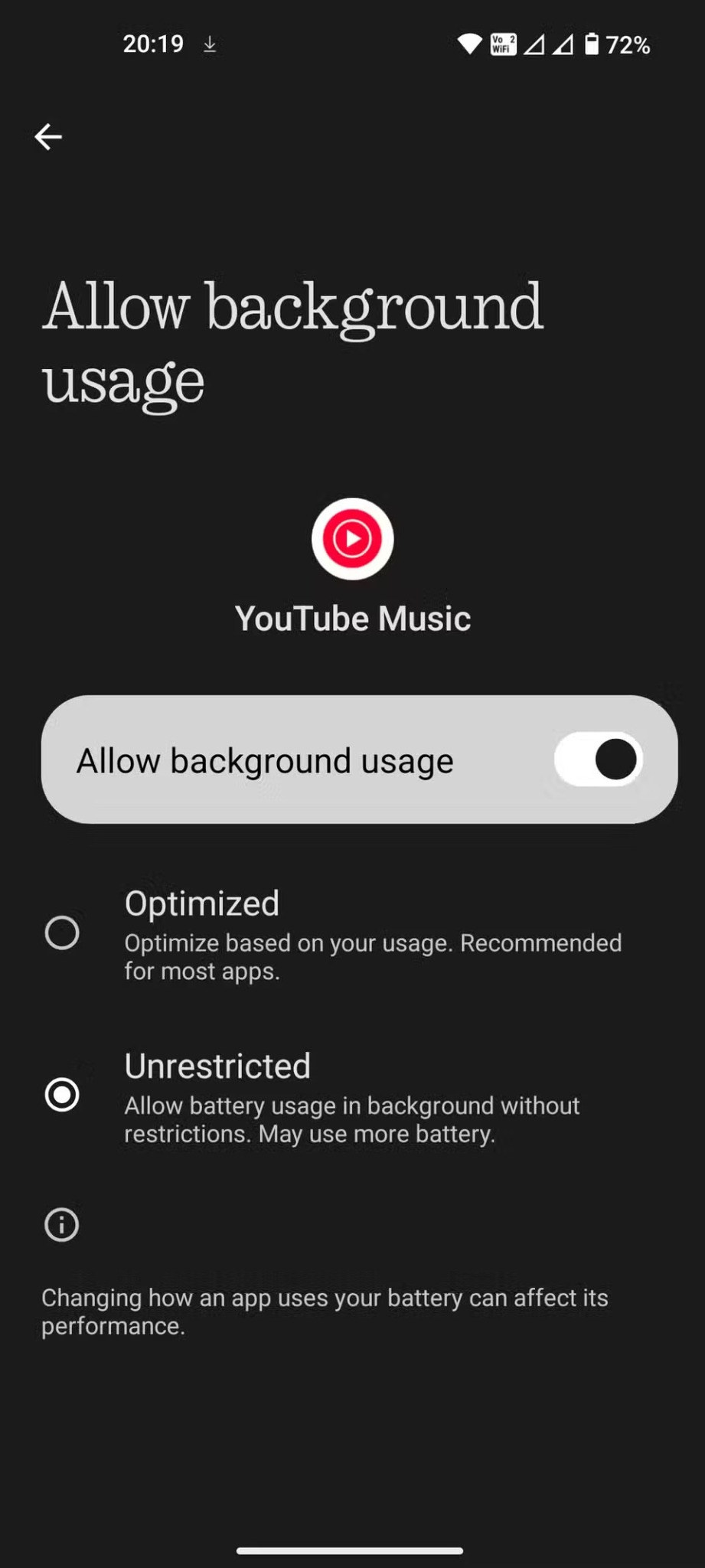
When Android puts the app to sleep overnight, Android Auto treats it as inactive and hides it. Long press the YouTube Music icon on your home screen, open App info, tap Battery, and switch it from Optimized to Unrestricted. On that same App info page, scroll down and turn off the toggle that removes permissions if an app goes unused.
Unwanted autoplay was another annoyance I had to chase down across three separate menus so music would not blast at seven in the morning the second I turned the key. If turning off Autoplay inside the Up Next queue does not stop it, open Android Auto settings on your phone and turn off Start music automatically. If speakers still start playing on their own, check your car stereo Bluetooth menu and disable automatic external media playback.
If you rely on hands free voice requests while driving, make sure your default music provider matches your setup. Open the Google app or Gemini settings on your phone, head into Connected Apps or Music settings, and pick YouTube Music as your default provider so simple voice requests route straight to your playlists.
Solving Android Auto Not Connecting Over USB Cables and Wireless Adapters
Sometimes the music player is completely fine, and the real problem is Android Auto not connecting reliably to the stereo. A cheap gas station cord I kept in my glovebox used to drop the connection every time the Civic hit a rough bump on the road. Swapping it out for a short, three foot braided Anker Android Auto USB cable solved ninety percent of my random disconnects immediately.
When I switched to a wireless Android Auto dongle for shorter errands around town, I ran into one final quirk where audio played out of my Galaxy S24 speaker instead of the car stereo. Whenever that happens, open Bluetooth settings on your phone, tap the gear icon next to your paired car, toggle Media audio off for three seconds, and switch it right back on to push sound back to your car speakers.
Making Daily Driving Audio Simple Again
Listening to playlists, DJ mixes, and podcasts on your morning drive should not mean sitting through three minute commercials or spending hundreds of dollars on a new head unit just to get basic controls back. Once you remove the stock Play Store conflict, enable Unknown sources, set battery usage to Unrestricted, and use a reliable data cable, YouTube Music on Android Auto works the way it should every single morning. Take five minutes to dial in those settings in your driveway once, and your commute gets a whole lot smoother.